
b2b email marketing best practices: 10 tips for 2025 success
Explore b2b email marketing best practices with practical tips to boost open rates, engagement, and conversions in 2025.
Read article
Your entire B2B outreach campaign hinges on getting the technical details right from the start, and that begins with Google's IMAP settings. The server details might look simple, but truly understanding them is what separates campaigns that scale from those that get shut down by spam filters.
Let's get straight to it. When you're running cold email campaigns, IMAP (Internet Message Access Protocol) is really the only way to go. It completely outclasses the older POP3 protocol, which just downloads emails to one device and calls it a day.
IMAP, on the other hand, keeps your mailbox perfectly synchronized across every tool you use. Your sending platform, your phone, your laptop—they all see the exact same real-time status of every single email. This constant sync is crucial for sales teams. As one user on Reddit’s r/sales subreddit put it, "IMAP saved me from sending a follow-up to a CEO who had already replied 'not interested.' That sync is a lifesaver."
Plugging in the right server details is easy. The real challenge pops up when you start sending email at any kind of volume. The problem isn't just connecting a mailbox; it's about keeping your deliverability clean while hooking up dozens or even hundreds of accounts to outreach tools. This is where most campaigns stumble.
The secret to scaling your outreach successfully is a managed infrastructure. When you have a system that handles the technical heavy lifting—like automating DNS records and watching over your domain health—you get the stability needed for high-volume sending. That's how you ensure your emails consistently hit the primary inbox.
The settings below are your starting point, but they're just one piece of a much bigger puzzle. To really build a rock-solid foundation for your campaigns, it's worth diving into the core principles of email deliverability.
When you're connecting your Gmail or Google Workspace account to any third-party app, these are the exact settings you'll need to use. There's no guesswork involved—just plug these in and you're good to go.
| Setting | Value |
|---|---|
| IMAP Server | imap.gmail.com |
| IMAP Port | 993 |
| SSL/TLS Required | Yes |
| Authentication | OAuth2 / App Password |
Getting these settings right ensures a secure, stable connection to Google's servers, which is the first step toward successful email outreach.
First things first, you can't connect any tool to your Google account until you give IMAP the green light. It’s a built-in security measure from Google to make sure no uninvited apps start messing with your email. The good news is that it’s easy to do, but the steps change slightly depending on if you're using a personal Gmail account or you're the admin for a Google Workspace team.
For a personal Gmail account, the switch is right inside your own settings. It's a quick toggle that opens up your mailbox to an external app—as long as it has the right credentials.
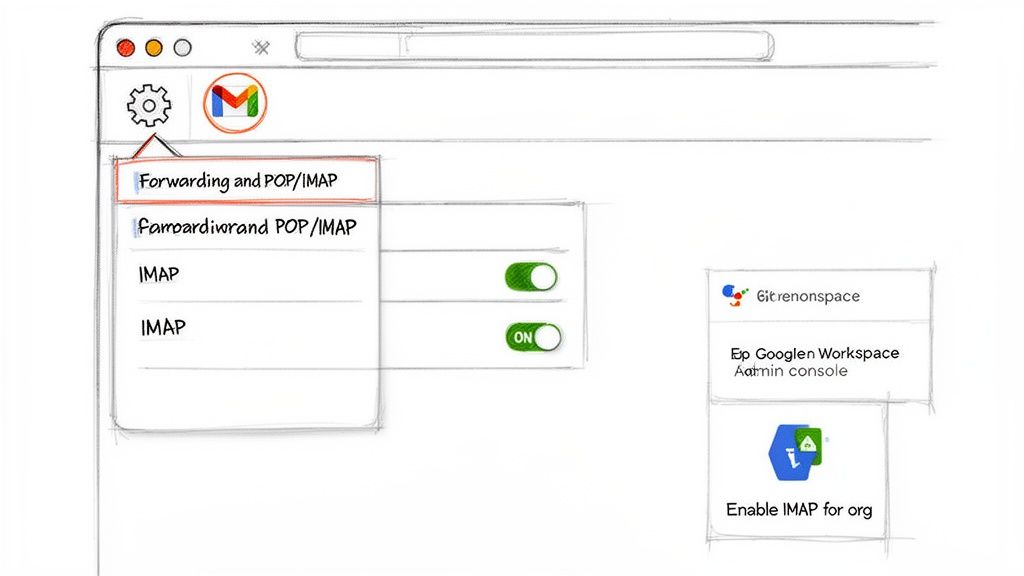
Hop into your Gmail account and look for the gear icon in the top right corner. Click it, then hit See all settings. This will open up the main settings panel with a bunch of tabs across the top.
Find and click on the Forwarding and POP/IMAP tab. Down in the "IMAP access" section, you'll see the option you need. Just select Enable IMAP and don't forget to scroll down and click Save Changes.
Here’s exactly where you'll find it:
Once that's done, your account is technically ready to connect. But we're not quite finished yet.
If you're running your team's email on Google Workspace, this setting isn't in the user's hands. As the administrator, you control IMAP access from the central Admin Console. This is a crucial security feature that stops employees from connecting their company inboxes to just any app they find.
For a deeper dive into configuring business accounts for outreach, check out our complete guide on Google Workspace accounts.
With IMAP enabled, the next question is how you let an outside tool sign in. Whatever you do, don't use your main Google password. It’s a huge security risk, and Google will almost certainly block the connection attempt anyway. The proper, secure method is to generate an App Password.
Think of an App Password as a unique, 16-digit key made for one specific app. It grants access to your account without ever exposing your main password or interfering with 2-Step Verification. It’s the non-negotiable standard for connecting tools to your Google account safely and reliably.
Plugging your email credentials into a tool like Instantly or Smartlead is just the first step. The real magic, and what separates the pros from the amateurs, is how you configure that connection to protect your sender reputation and maximize deliverability.
It all starts with the right IMAP settings for Google: imap.gmail.com for the server and port 993 for the connection. When your tool asks for your password, this is where you’ll use that 16-digit App Password you created earlier—never your main Google account password. This is a critical security and stability measure you can't skip.
Once you’re connected, you'll see a bunch of advanced settings in your outreach tool. The one you absolutely have to get right is the email sync or check frequency.
A huge mistake I see people make is setting this to check for new emails too aggressively. Think about it: a real person doesn't check their inbox every 30 seconds. A thread on r/coldemail had a user complaining their accounts kept getting locked, and the community quickly pointed out their sync interval was set to every minute. That’s a dead giveaway to Google's algorithms that a bot is at work.
Keep the sync interval slower and more natural—every 5-10 minutes is a much safer bet. You're trying to mimic human behavior, not blast their servers with constant requests.
Your IMAP connection is only as strong as the domain it's tied to. The settings are the bridge, but your domain's SPF, DKIM, and DMARC records are the foundation that bridge is built on. A shaky foundation makes the bridge worthless.
Getting your DNS records right is what tells other email servers that your outreach platform is authorized to send emails on your behalf. This is the technical handshake that gets you into the primary inbox instead of landing you straight in spam. Beyond the simple IMAP setup, a solid understanding of your entire cold email infrastructure setup is what truly makes the difference.
For agencies juggling multiple client accounts, nailing these connections at scale is even more critical. Streamlining this requires a deep understanding of both the technical knobs and the bigger picture of deliverability. You can dive deeper into building these kinds of scalable systems by checking out proven agency workflows.
Getting your IMAP settings dialed in is the first step, but scaling your outreach is a whole different beast. It’s less about technical settings and more about smart strategy. The biggest mistake I see people make is sending too many emails too quickly—it’s the fastest way to get your accounts shut down and your domains burned. For any kind of long-term success, a slow and steady approach isn't just a suggestion; it's mandatory.
The cornerstone of scaling safely is a proper email warmup. You can't just fire up a brand-new mailbox and start blasting hundreds of emails. You have to earn trust with providers like Google by acting like a real human. That means starting with a trickle of emails and gradually increasing your volume over a minimum of 14 days.
This process lays the groundwork for connecting your tools and launching your campaigns without immediately landing in the spam folder.
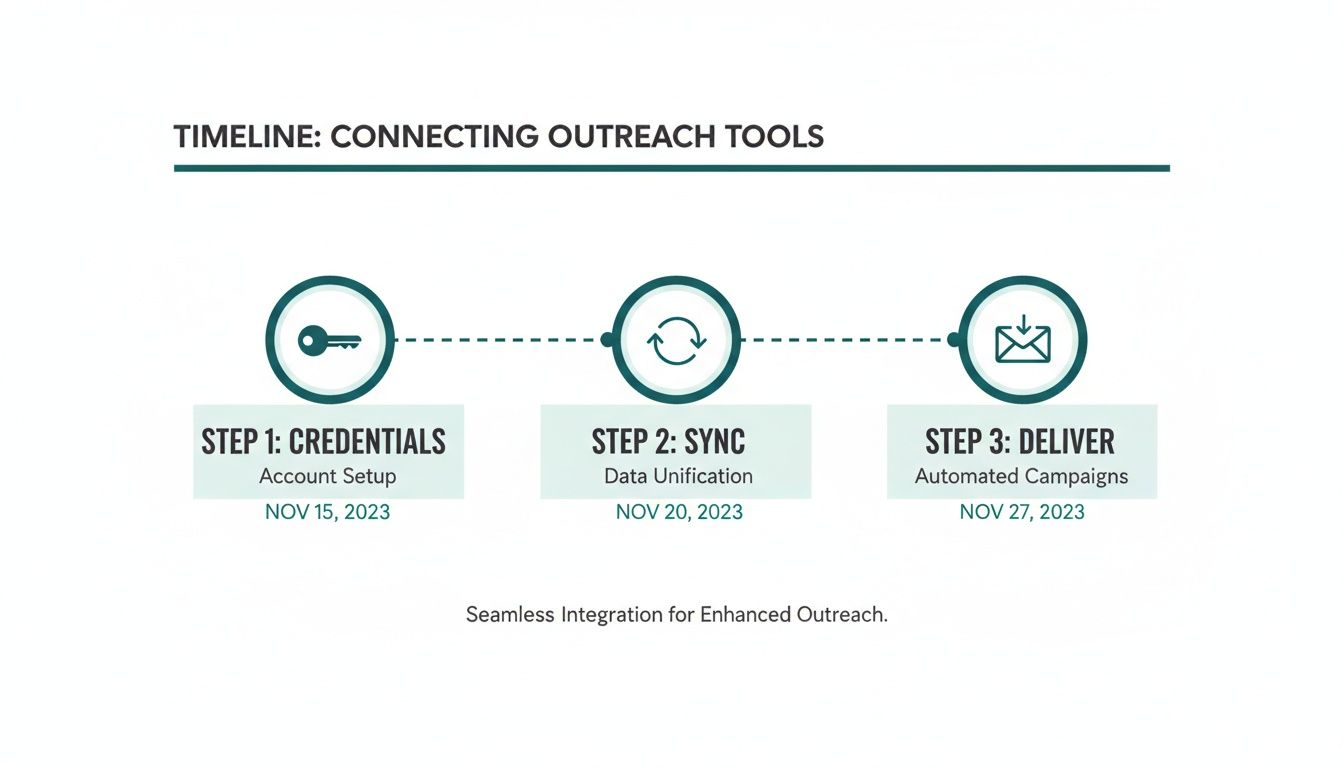
As you can see, once the mailbox is ready, the technical flow is straightforward: you provide your credentials, the tool syncs your mailbox, and you're ready to start delivering emails.
After your mailboxes are warmed up, the game shifts to consistency over sheer volume. It's tempting to push right up against Google's daily sending limits, but trust me, that's a losing strategy that tanks your sender reputation.
The real sweet spot for cold outreach is a surprisingly low 10-15 emails per mailbox daily. I saw a post on Reddit where a founder celebrated hitting 50 sends a day, only to follow up a week later asking why his domain was blacklisted. This conservative volume keeps you off Google's radar and helps maintain the perception that you're a legitimate, non-spammy sender.
Another hard-and-fast rule is to limit your exposure per domain. Never use more than three mailboxes per domain for your cold outreach campaigns. If you need more sending power, the answer isn't to cram more mailboxes onto one domain. It's to add more domains to your portfolio.
Think of it like training for a marathon, not a sprint. The 14-day warmup is your initial conditioning. Sticking to a low daily volume and spreading your sending across multiple domains is how you maintain your pace without getting hurt (or in this case, blacklisted). To really dig into this, check out our complete guide and master the art of the cold email warmup.
Choosing the right daily volume comes down to balancing your outreach goals with the need to protect your sender reputation. Here's a look at how different strategies stack up.
| Strategy | Daily Emails Per Mailbox | Expected Outcome |
|---|---|---|
| Deliverability First (Recommended) | 10-15 | Highest deliverability, lowest risk of account suspension, and long-term domain health. |
| Balanced Growth | 25-40 | Moderate volume with good deliverability, but requires careful monitoring of metrics. |
| Aggressive Scaling (High Risk) | 50+ | Significantly higher risk of landing in spam, domain blacklisting, and account suspension. |
While a higher volume might seem appealing for short-term gains, the "Deliverability First" strategy is the only sustainable path for serious outreach professionals.
To scale safely, you have to become obsessed with your sending metrics. Forget open rates for a moment—the two numbers that can make or break you are your bounce rate and your spam complaint rate.
Gmail’s IMAP is built for this kind of work, allowing up to 15 simultaneous connections per account. This is where using official Google Workspace mailboxes, especially those from a partner like InboxKit that come with automated DNS records, gives you an edge. They can integrate with over 15 different tools like Instantly or Smartlead right out of the box.
Even with that kind of power, remember the fundamentals: a strict 14-day warmup and a 10-15 email daily volume are what will ultimately protect your deliverability for the long haul. Keeping an eye on IMAP limits and best practices is also just smart policy.
Finally, think of automated DNS monitoring as your last line of defense. It acts as an early-warning system, alerting you to problems with your SPF, DKIM, or DMARC records before they turn into a full-blown deliverability crisis.
Nothing stalls an outreach campaign quite like a stubborn connection error. When your sending tool and Google's servers aren't communicating, everything stops. The good news is that most IMAP issues fall into just a few common buckets, and they're usually simple to fix once you know what to look for.
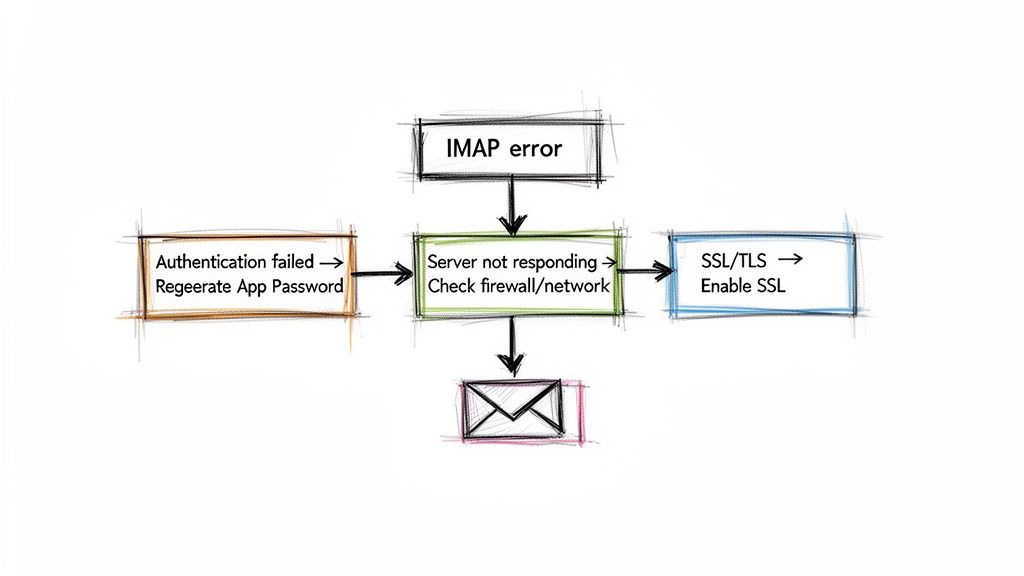
The error you'll probably see most often is the classic "Authentication failed" message. In my experience, this almost always points back to a problem with your App Password. Remember, you should never be plugging your main Google account password into a third-party application.
If that error pops up, your first move should be to head straight to your Google account settings, delete the old App Password you were using, and generate a brand new one.
Another frequent roadblock is the more generic "Server is not responding" message. This one's a bit vaguer because it could be caused by a few different things. It might be a momentary hiccup with your own internet connection, a firewall on your computer blocking the port, or a simple typo in the port number. Always double-check that you're using port 993 with SSL/TLS turned on.
A secure connection isn't optional, it's required. Here's a quick checklist to run through in your outreach tool's settings to make sure everything is locked down correctly:
imap.gmail.com exactly. A simple typo here (like impa.gmail.com) is a surprisingly common mistake.Getting these IMAP settings right is more important than ever. Google has announced plans to phase out POP3 support by January 2026, which cements IMAP as the go-to standard for third-party tools. For Workspace admins, this is a clear signal to start migrating any legacy systems over to IMAP now. You can read more about how this Google update impacts email users.
Even with a flawless setup, some questions inevitably pop up. Here are a few common stumbling blocks I've seen countless times in cold email communities, along with some straightforward answers to get you back on track.
This is a classic problem, and it's almost never about the password itself. You've double-checked the 16-digit App Password, copied it perfectly, but you're still hit with an authentication error. What gives?
Nine times out of ten, this is a security flag on your Google account. A sudden login from a new application or an unfamiliar location can spook Google's security system, causing it to temporarily block the connection. The fastest way to fix this is to sign into that specific Google account in your web browser. Look for any security alerts, confirm the login attempt was you, and then try connecting with the App Password again. That usually does the trick.
Don't get fixated on the official numbers from Google—they don't apply to cold outreach. A standard Gmail account has a technical limit of 500 emails per 24 hours, and a Google Workspace account bumps that up to 2,000.
However, you should never get close to those limits with your campaigns. In the real world of cold email, blasting out hundreds of emails from a single account is a surefire way to get flagged as a spammer. For sustainable, long-term deliverability, your goal should be a much more conservative 10-15 emails per mailbox per day, and only after a proper warmup period. The technical limit is noise; your sender reputation is everything.
The core principle is simple: Your primary business domain is your most valuable digital asset. Using it for cold outreach is like parking your company's delivery truck in a tow-away zone—the risk of losing it is far too high for the potential reward.
Your main business domain—the yourcompany.com your team uses to talk to clients, partners, and inbound leads—is sacred. Its sender reputation is likely spotless, and it needs to stay that way.
Cold email, even when executed perfectly, carries an inherent risk of spam complaints and bounces. If your main domain gets flagged or blacklisted, it could paralyze your company's most important communications. The solution is simple: always buy separate, similar-looking domains (like getyourcompany.com) just for your outbound campaigns. This strategy isolates all the risk, keeping your core operations safe.
Stop struggling with complex email infrastructure and focus on what you do best—closing deals. InboxKit provides official Google Workspace and Microsoft 365 mailboxes with automated DNS setup, so you can launch scalable, high-deliverability outreach campaigns in minutes, not days. See how easy it is with InboxKit.
Explore b2b email marketing best practices with practical tips to boost open rates, engagement, and conversions in 2025.
Read articleDiscover the 12 best cold email infrastructure tools to scale outreach. Compare features, pricing, and deliverability for agencies and sales teams.
Read articleDiscover how to manage multiple email accounts efficiently with simple steps, workflows, and tools to stay organized and save time.
Read articleInboxKit provides everything you need to reach the inbox consistently